Quickstart
Set up Salli and reach a useful home screen in about ten minutes.
Set up Salli
This guide takes you from first launch to a useful local budget. Salli does not require registration.
Install a current test build
Salli is currently distributed as a development or beta build. Use the build supplied by Prabhava Labs or run the app from source. Public store links will be added after release approvals.
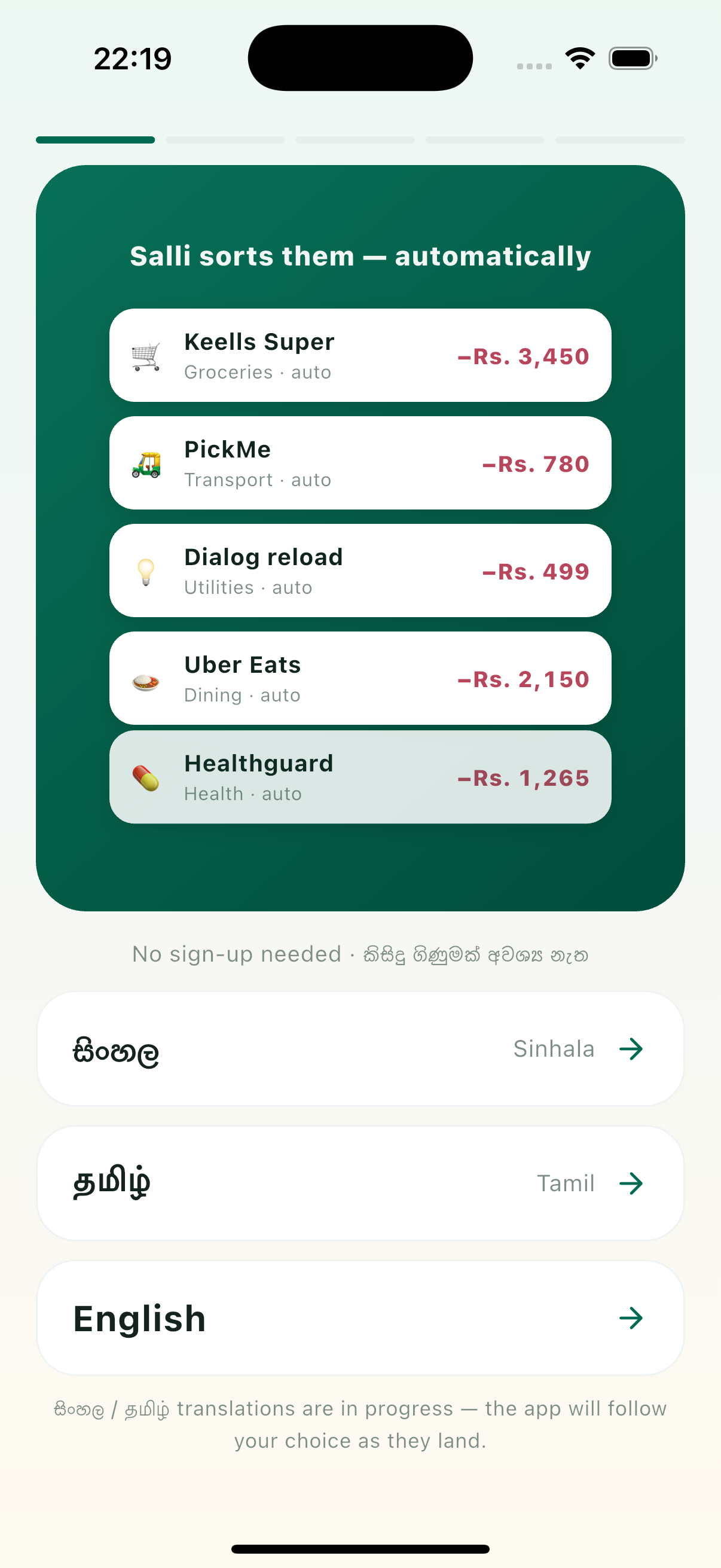
Choose English, Sinhala, or Tamil
Your choice applies immediately and stays on this device. You can change it later under More → Settings → Language.
Review how Salli works
Salli explains that bank alerts are processed on the device, bank logins are never requested, and supported financial data is stored locally.
Set your payday
Choose the day your main income usually arrives. Salli uses payday-to-payday cycles instead of forcing a calendar month. Expected income is optional.
Choose transaction capture
On Android, you can allow bank-SMS auto-tracking or keep it off and enter transactions manually. On iPhone, manual and receipt entry are the normal paths because iOS cannot expose the SMS inbox.
Start fresh or explore samples
Choose Start fresh for an empty private ledger or Explore with sample data to see how the main screens work.
Add your first transaction
- Tap the gold + button.
- Choose Expense or Income.
- Enter the amount and merchant or payer.
- Choose Cash or one of your enabled wallets.
- Confirm the category and save.
The entry appears immediately on Home, Activity, budgets, and Insights.
Add your first wallet
Go to More → Accounts → Add wallet. Choose the institution or wallet type, give it a name, set its currency, and optionally enter an opening balance.
Make the home number useful
Go to More → Settings → Customize cycle calculation and review:
- payday;
- expected income;
- savings reserve;
- committed spending; and
- any category budgets or upcoming approved payments.
Then open the information button beside Safe to Spend to inspect the calculation.
Verify your setup
You are ready when:
- Home shows the expected budget-cycle dates;
- your first entry appears in Activity;
- the correct account and category are attached;
- Safe to Spend reflects your cycle settings; and
- any optional SMS or reminder permission matches your choice.
Learn what Home, Activity, Insights, More, and the + button contain.